Thank you for choosing your replacement remote control. This guide will help you get started and solve the most common problems you may encounter.
Quick access
🔋 Installation and first checks
🔧 My remote control is not working
1. Install the batteries
Open the battery compartment on the back of the remote control and insert the batteries, observing the + and − polarities indicated inside the compartment.
We recommend using new, good-quality alkaline batteries. Please note that even batteries sold as new may have lost some of their capacity if they have been stored for a long period, either in a shop or at home. This may cause the remote control to malfunction.
When inserting the batteries, all 4 LEDs on the remote control should not start flashing. If all 4 LEDs flash, this usually indicates a battery power problem.
Remove the batteries and try again with another set of new alkaline batteries, preferably from a different pack.
Never mix a new battery with a used one, and avoid using batteries of different brands or charge levels.
2. First use
Once the batteries have been correctly installed, point the remote control towards your device and press the POWER / On-Off button.
For most of our remote controls, no special configuration is required: the remote control is already configured to operate the compatible device specified when you placed your order.
Normally, there is no need to copy, synchronise or program your old remote control.
3. Check the main functions
After switching on your device, test several main functions:
- Power On / Off
- Volume + / −
- Channel change
- Menu
- Arrow navigation
- OK / confirmation button
- Back / Exit
The available functions naturally depend on the features of your device.
4. My new remote control looks different from the original
A replacement remote control may have a different shape, colours, symbols or button layout compared with the original remote control.
This does not mean that it is incompatible. It is designed to reproduce the functions required to control the device indicated as compatible.
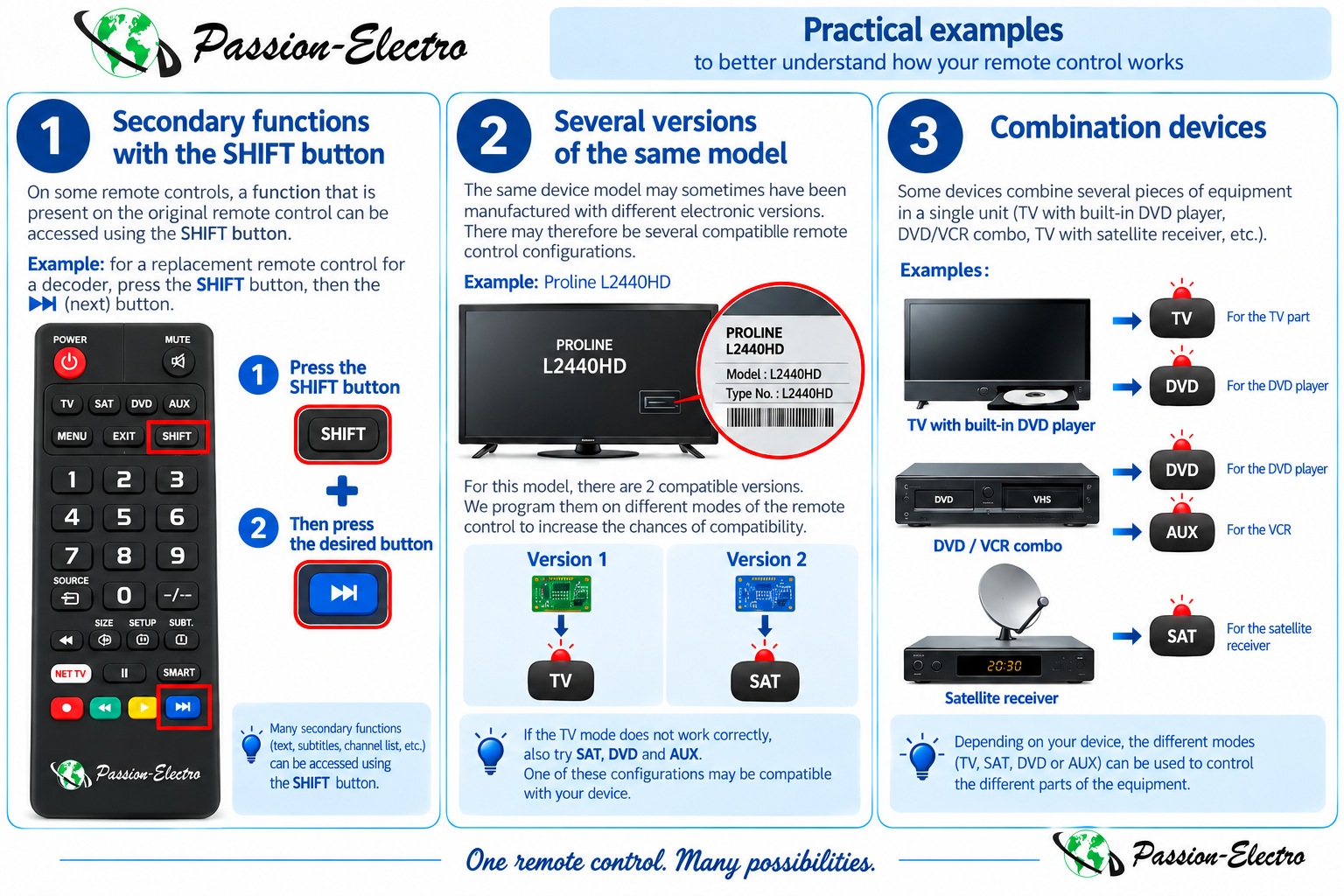
5. Secondary functions and the SHIFT button
On some replacement remote controls, a single button can provide access to several functions. Some functions available on the original remote control may therefore be accessed using the SHIFT button or a combination of buttons.
If a function appears to be missing, this does not necessarily mean that it is unavailable. Our customer service team can help you identify the corresponding button or button combination.
6. The remote control does not respond
Before contacting our customer service team, please carry out the following checks:
- Remove the batteries from the remote control.
- Wait approximately 30 seconds.
- Insert another set of new alkaline batteries, observing the + and − polarities.
- Check that all 4 LEDs do not flash abnormally when the batteries are inserted.
- Point the remote control directly towards the receiver on your device.
- Stand a few metres away from the device.
- Press POWER / On-Off.
- Make sure that no object is blocking the infrared sensor on your device.
7. Check the infrared signal with a smartphone
You can perform a simple test to check whether the remote control is emitting an infrared signal.
- Open the camera application on your smartphone.
- Point the top of the remote control towards the camera lens.
- Look at the smartphone screen.
- Press a button on the remote control several times.
If the camera detects infrared light, you should generally see a light or flashing signal coming from the remote control transmitter.
8. Check the exact model number of your device
Two devices from the same brand that look almost identical may require different remote controls or different codes.
Please check the complete model number of your device. It is usually shown on a label located on the back or underneath the device. Look for information such as Model, Model No., Type or an equivalent description.
9. Why does my remote control have TV, SAT, DVD and AUX modes?
Some of our remote controls have four modes: TV, SAT, DVD and AUX. These modes allow several configurations to be stored on a single remote control.
Combination devices
Some devices combine several types of equipment or functions, for example:
- a television with a built-in DVD player;
- a DVD / VCR combination unit;
- a television with a built-in satellite receiver or decoder;
- audio/video equipment combining several functions.
In these cases, different modes may be used to control the different parts of the device.
Several versions of the same model
The same device model may sometimes have been manufactured with several electronic versions or configurations, even during the same production year.
When necessary, we can therefore program several compatible versions across the TV, SAT, DVD and AUX modes to increase the chances of compatibility.
10. Test the 4 TV, SAT, DVD and AUX modes
If your device does not respond correctly in the first mode, carry out the following procedure while facing the device:
- Point the remote control towards your device.
- Press TV. The corresponding red LED lights up to confirm the mode. Then test POWER, Volume +/−, channels and the number buttons.
- If it does not work correctly, press SAT. Once the LED confirms the mode, test the main functions again.
- If necessary, select DVD and perform the same tests.
- Finally, select AUX and test the main functions again.
↓
SAT → test
↓
DVD → test
↓
AUX → test
If one of the modes allows you to control your device correctly, simply use that mode for everyday operation, even if its name does not correspond to the type of device you are using.
11. A button does not perform the expected function
If your remote control operates the device but one button performs a different function, first check that you are using the TV, SAT, DVD or AUX mode offering the best compatibility.
A difference may also be related to a secondary function, the SHIFT button or a different button layout compared with the original remote control.
12. Still need help?
Have you carried out all the checks above and your remote control is still not working correctly? Our customer service team can help you check its compatibility and configuration.
To help us diagnose the problem more quickly, please prepare the following information:
- your order number;
- the brand of your device;
- its exact model number;
- a precise description of the problem;
- the TV, SAT, DVD or AUX modes already tested, if applicable;
- the button or buttons concerned.
If possible, take a clear photo of the identification label on the back or underneath your device. The brand and complete model number must be readable.
You can attach this photo directly to your message using our contact form.
You will be redirected to our secure contact form, where Remote Control Support / Compatibility will be automatically selected. You can enter your message and attach your file or photo.
We are here to help
Remote-Control-Shop specialises in replacement remote controls for televisions, SAT/DTT receivers, DVD and Blu-ray players, VCRs, Hi-Fi systems, projectors and many other devices.
Our goal is to help you easily restore the main functions of your device, even when the original remote control is no longer available.