Is your replacement remote control not working as expected? In most cases, a few simple checks can quickly identify the cause of the problem.
Before contacting our support team, follow the steps below in order: batteries, indicator lights, infrared signal, selected mode, SHIFT button and the exact model number of your device.
Quick access
💡 2. Check the indicator lights
📺 4. Test TV / SAT / DVD / AUX modes
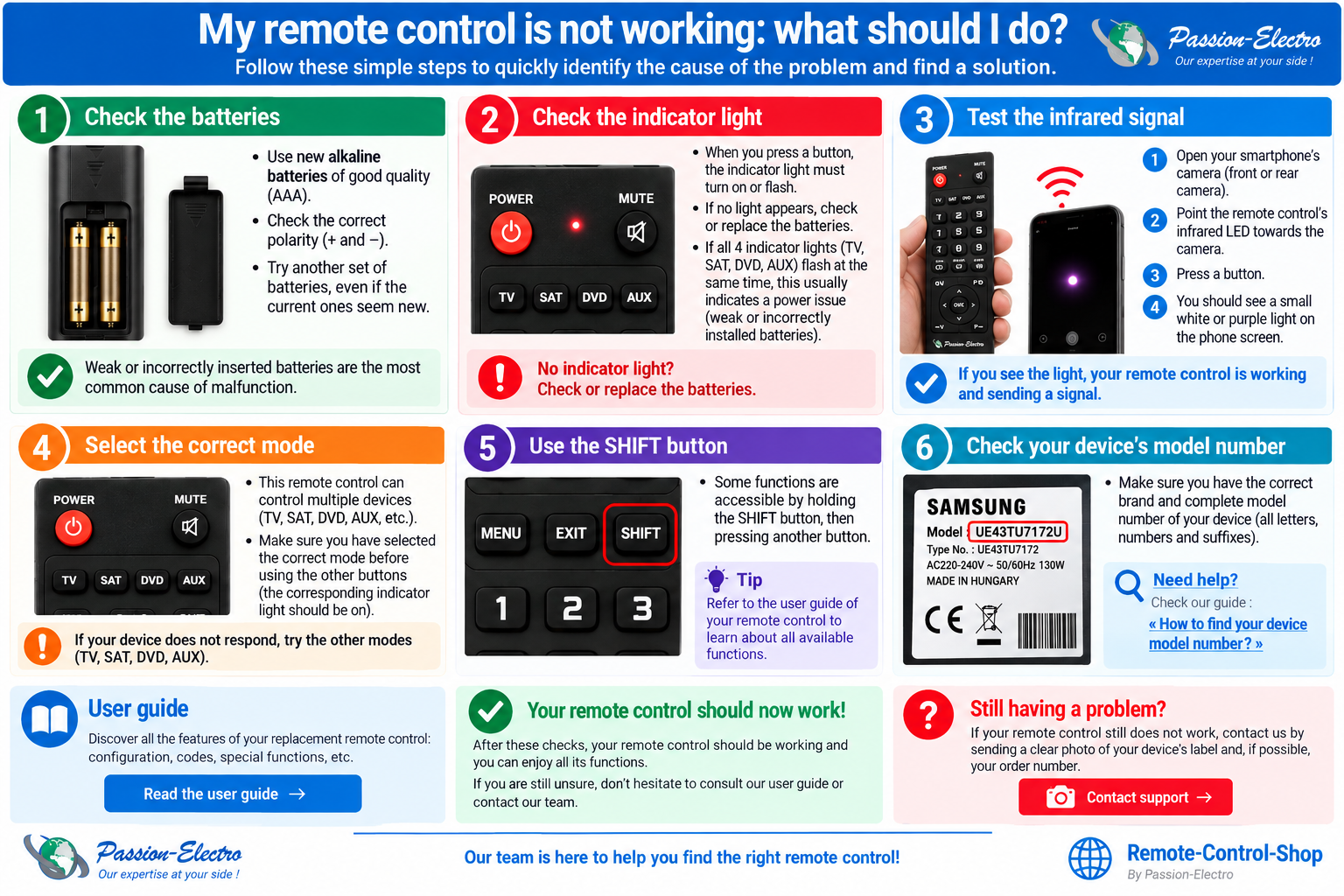
🔍 Click the image to enlarge it
1. Check the batteries
The first thing to check is the power supply of your remote control. Weak, incorrectly inserted or defective batteries can prevent it from working normally.
We recommend that you:
- use new, good-quality alkaline batteries;
- carefully check the + and − polarity;
- remove and correctly reinstall the batteries;
- try a different set of batteries, even if the batteries already installed appear to be new.
2. Check the indicator lights
When you press a button, observe the indicator lights on the remote control.
Depending on the remote control, an indicator corresponding to TV, SAT, DVD or AUX may light up or flash.
This can generally indicate a power supply problem. Check the position of the batteries again and try another set of batteries.
If no indicator light comes on, replace the batteries before continuing with the diagnosis.
3. Test the infrared signal with your smartphone
Most remote controls use an infrared signal that is invisible to the naked eye. You can often check this signal using your smartphone camera.
- Open the Camera app on your smartphone.
- Point the LED at the end of the remote control towards the phone's camera.
- Look at the smartphone screen.
- Press several buttons on the remote control.
If you can see this light, the remote control is transmitting an infrared signal.
4. Test the different TV / SAT / DVD / AUX modes
Some replacement remote controls may have several operating modes, for example:
- TV;
- SAT;
- DVD;
- AUX.
Make sure that the correct mode is selected before testing the remote control functions.
Try the other available modes one after another. For example, even with a television, temporarily test TV, SAT, DVD and then AUX.
This check is particularly important because the same device model may sometimes have been produced with different electronic versions.
5. Try the SHIFT button
Your replacement remote control may have a different button layout from your original remote control.
Some secondary functions may be accessible using the SHIFT button.
- press and hold SHIFT;
- then press the button corresponding to the required function.
Our complete guide explains replacement remote controls, the different operating modes and how to use the SHIFT button.
6. Check the exact model number of your device
If the remote control is transmitting an infrared signal but your device still does not respond, check the exact model number of the device you want to control.
Brand: PHILIPS
Model: 32PFL5604H/12
Please provide the complete model number: 32PFL5604H/12, not only 32PFL5604.
Letters, numbers and suffixes may identify a specific electronic version of the device.
Do not rely only on the reference printed on your old remote control: the remote control reference is not necessarily the model number of your device.
7. The remote control transmits a signal but the device does not respond
If the smartphone test confirms that the remote control is transmitting an infrared signal but the device does not respond, this does not necessarily mean that the remote control is defective.
The cause may be:
- an incorrect operating mode;
- a function requiring SHIFT;
- an incomplete device model number;
- a different electronic version of the same commercial model;
- a combination device such as TV/DVD or DVD/VCR.
8. Still having a problem? Contact our support team
If your remote control still does not work after these checks, contact our team so that we can carry out a more detailed diagnosis.
- your order number;
- the brand of your device;
- its exact and complete model number;
- the TV / SAT / DVD / AUX modes already tested;
- the result of the smartphone infrared test;
- and, if possible, a photo of the identification label on the back or underneath your device.
You will be redirected to our contact form with Remote Control Support / Compatibility automatically selected. You can also attach a photo of your device label.
Is your remote control working now?
You can now use your replacement remote control normally. To discover its functions, operating modes and the SHIFT button, see our replacement remote control user guide.
Remote-Control-Shop specialises in replacement remote controls for televisions, SAT/DTT receivers, DVD/Blu-ray players, VCRs, Hi-Fi systems, projectors and many other electronic devices.